Overview Tab
After creating your tournament you'll land on the Overview tab. Think of this as your tournament dashboard - it shows you what's done, what still needs attention, and a summary of the key details.
Status and Modes
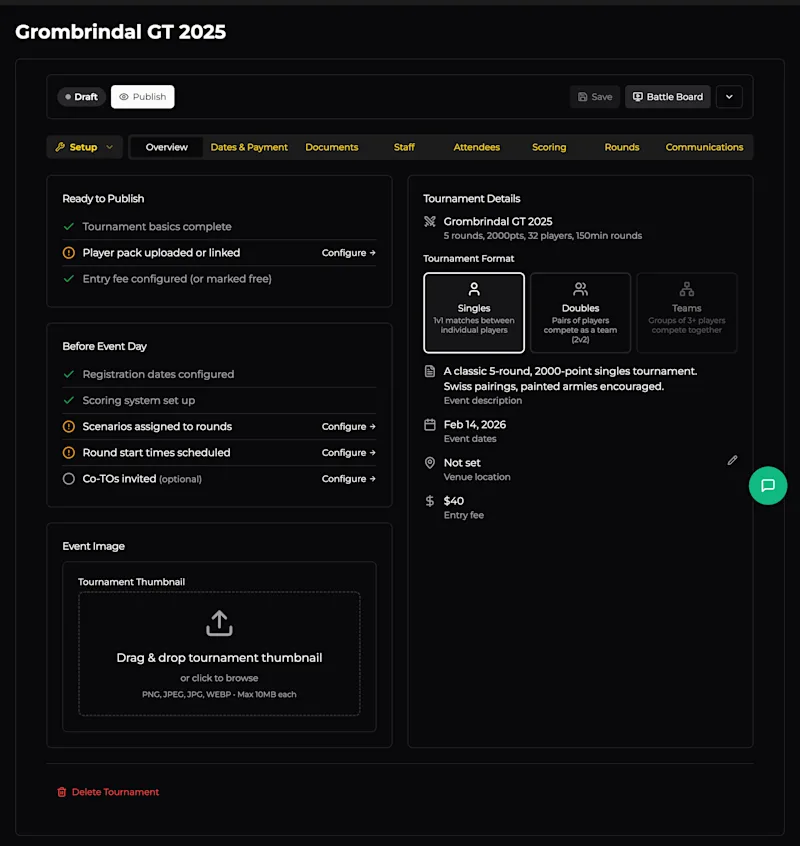
At the top of the page you'll see two key controls:
Draft / Publish - Your tournament starts in Draft mode (invisible to the public). When everything is configured, hit Publish to make it live on OWR. You can toggle back to Draft at any time.
Setup / Battle Board - Setup is where you configure everything before the event. Battle Board is the game-day display for projecting pairings, standings, and the round clock at the venue.
Ready to Publish Checklist
This section tracks the minimum requirements before your event can go live:
Tournament basics complete - Name, format, points, and rounds are set.
Player pack uploaded or linked - A PDF player pack has been attached via the Documents tab.
Entry fee configured (or marked free) - You've set a price or confirmed the event is free in Dates & Payment.
Green ticks mean you're good. Orange circles mean there's still something to do - click Configure to jump straight to the relevant tab.
Before Event Day Checklist
These items aren't required to publish, but you'll want them sorted before dice start rolling:
Registration dates configured - Open/close dates are set so players know when they can sign up.
Scoring system set up - Battle points, sports scores, painting scores, etc. are configured in the Scoring tab.
Scenarios assigned to rounds - Each round has a scenario (mission) assigned.
Round start times scheduled - Players can see when each round kicks off.
Co-TOs invited (optional) - Additional Tournament Organisers have been added via the Staff tab.
Tournament Details
The right-hand panel shows a summary of your event: name and format (Singles / Doubles / Teams), key stats (rounds, points, player cap, round time), your event description, dates, venue location, and entry fee.
Event Image and Deletion
Below the checklists you can upload or change your tournament thumbnail. This image appears in event listings and search results.
At the very bottom there's a Delete Tournament link. This permanently removes the event - use with caution. Only available while the event is in Draft status.