
Create a Tournament
To host a tournament on OWR, click Host Tournament in the sidebar (or the button in the top nav bar). This opens the creation form where you'll set up the basics before diving into detailed configuration.
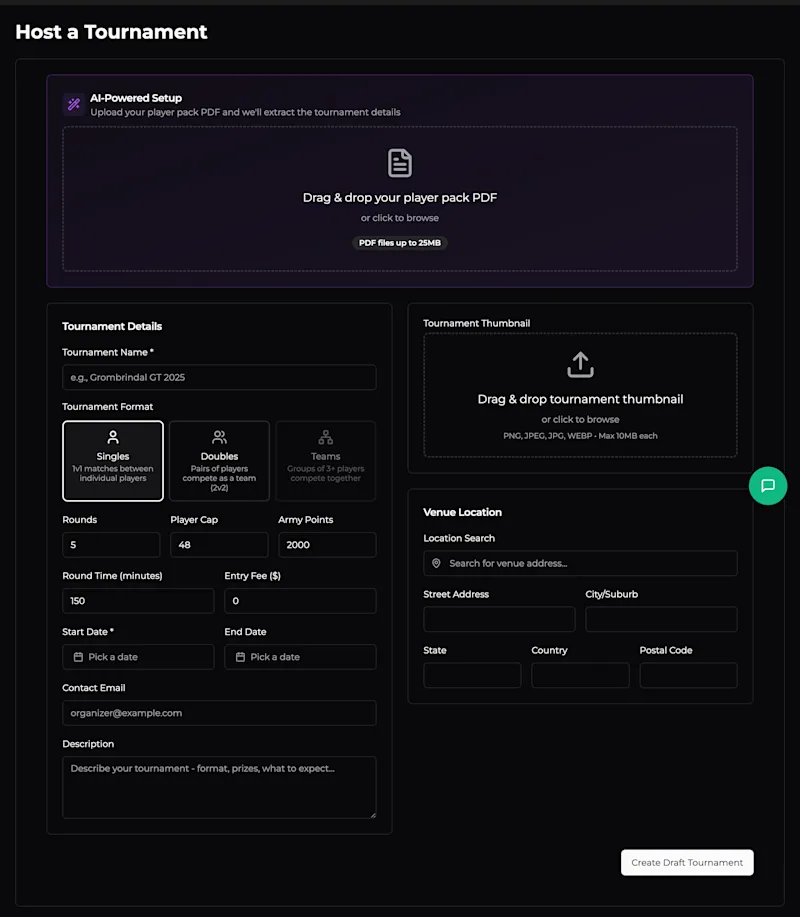
AI-Powered Setup (Optional)
At the top of the form you'll see a drag-and-drop zone for your player pack PDF. Drop your pack in here and OWR will attempt to extract tournament details (name, points, rounds, dates, etc.) automatically. This is entirely optional - you can fill everything in by hand.
Tournament Details
Tournament Name - The public name for your event. Pick something memorable.
Tournament Format - Singles (1v1), Doubles (2v2 teams), or Teams (3+ players per team). Defaults to Singles.
Rounds - Total number of game rounds. Default: 5.
Player Cap - Maximum number of players who can register. Default: 48.
Army Points - Points limit for army lists. Default: 2000.
Round Time (minutes) - How long each round lasts. Default: 150.
Entry Fee ($) - Cost per player. Set to 0 for free events.
Start Date / End Date - First and last day of the tournament. Start date is required.
Contact Email - Displayed to attendees for questions.
Description - Free-text description - format, prizes, what to expect. Shown on the tournament's public page.
Tournament Thumbnail
Upload an image (PNG, JPEG, or WEBP, up to 10 MB) to serve as your event's cover art. This appears on tournament listings and the event page header.
Venue Location
Start typing in the Location Search field and select a result to auto-fill the address fields (street, city, state, country, postal code). You can also enter the address manually. The venue shows up on a map on your tournament's public page, helping attendees find the event.
Creating the Draft
Once you're happy with the basics, hit Create Draft Tournament. This creates the event in Draft status - it won't be visible to the public until you publish it. You'll land on the Overview tab where you can continue configuring scoring, rounds, staff, and more before going live.