Setting Up Stripe Payments
Old World Rankings uses Stripe to securely process tournament registration payments. This guide walks you through connecting your Stripe account so you can start collecting entry fees from players.
Step 1: Connect Your Stripe Account
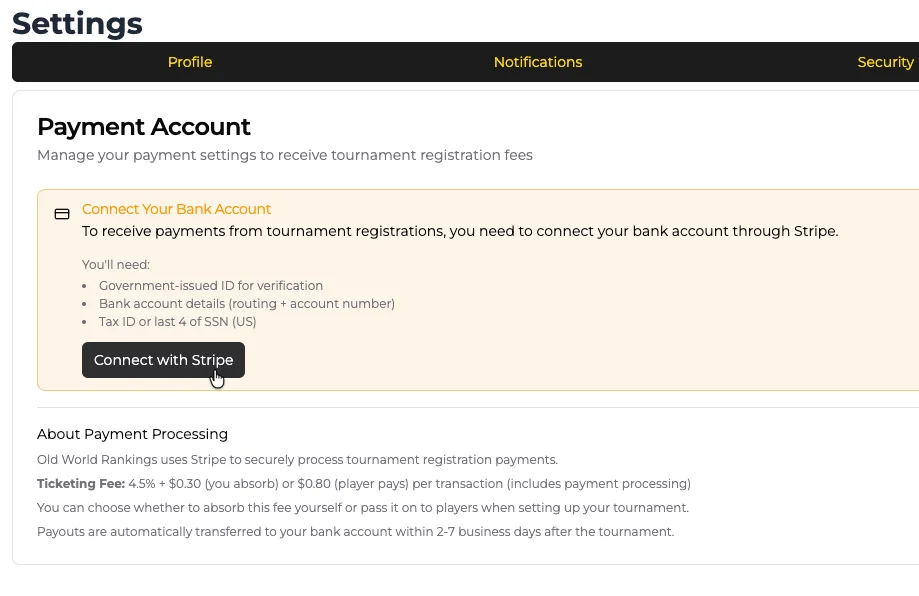
Go to Settings → Payments in your OWR account. You'll see the Payment Account section explaining what you'll need:
Government-issued ID for verification
Bank account details (routing + account number)
Tax ID or last 4 of SSN (US)
Click the Connect with Stripe button to begin.

Step 3: Enter Your Business Details
Stripe will ask for some business details about how you earn money with Old World Rankings.
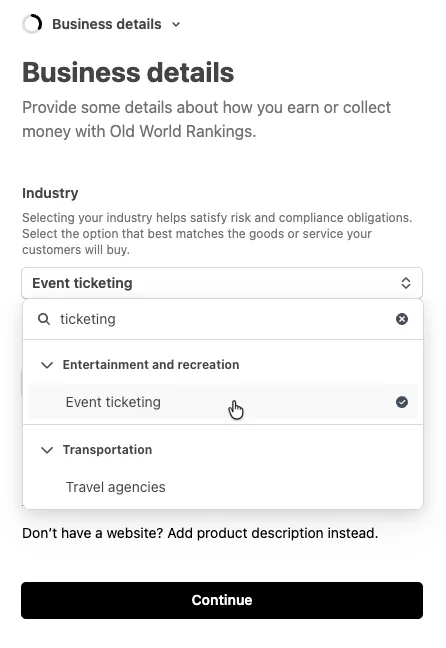
Industry
Search for "ticketing" and select Event ticketing under Entertainment and recreation. This best describes running tabletop gaming tournaments.
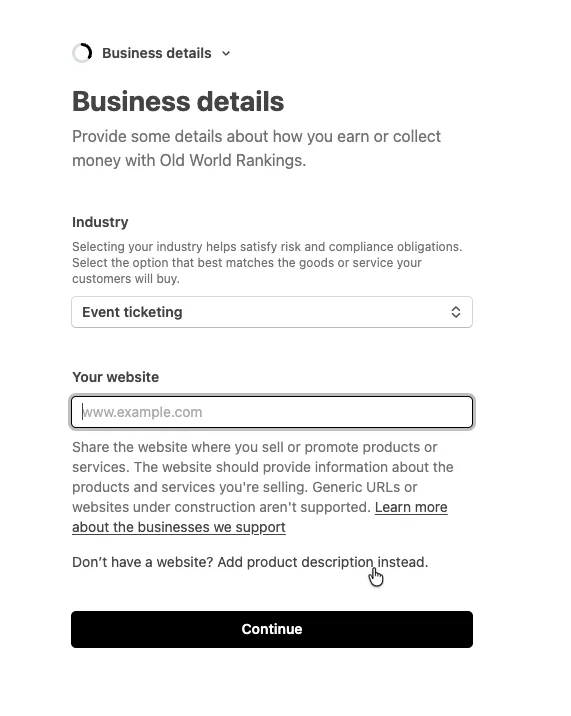
Website
You have two options:
Option A - Enter your OWR tournament page URL, e.g. https://oldworldrankings.com/au/tournaments/your-tournament-slug
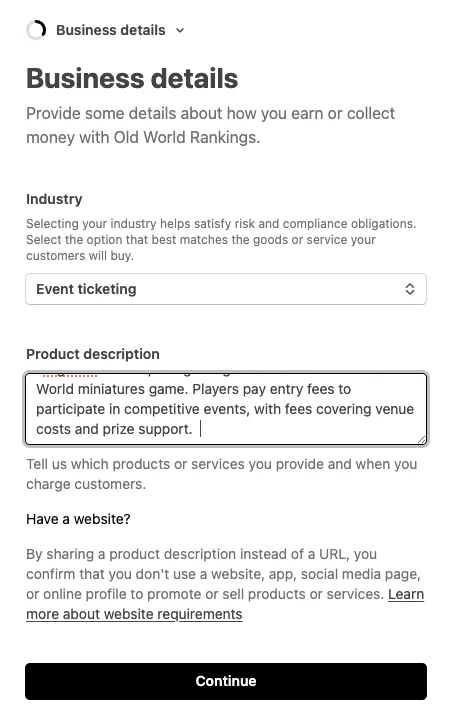
Option B - Click "Don't have a website? Add product description instead" and write a short description of what you do. Here's one you can copy and paste:
I organize tabletop wargaming tournaments for the Old World miniatures game. Players pay entry fees to participate in competitive events, with fees covering venue costs and prize support.
Other Details Stripe May Ask
Business type: Select "Individual" (unless you're an actual registered business/club)
What do you sell: "Event tickets" or "Tournament entry fees"
Expected transaction amounts: Typical entry fees ($20 - 50 AUD per player)
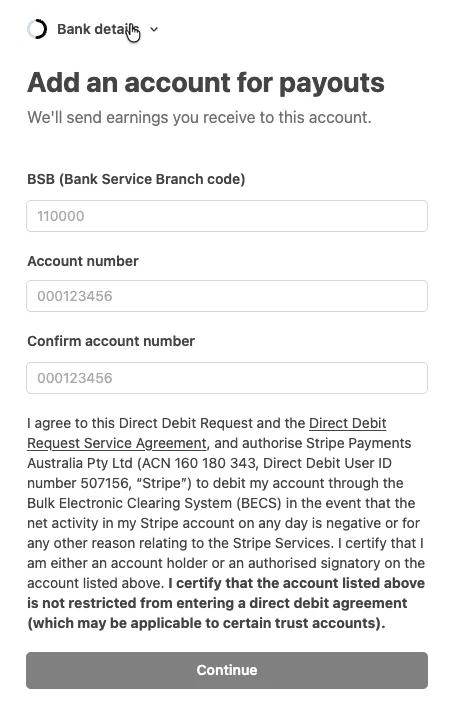
Step 4: Add Your Bank Account
Enter your bank account details so Stripe knows where to send your payouts. You'll need your BSB (branch code) and account number. Double-check these - incorrect details will delay your payouts.
Step 5: Verify Your Identity
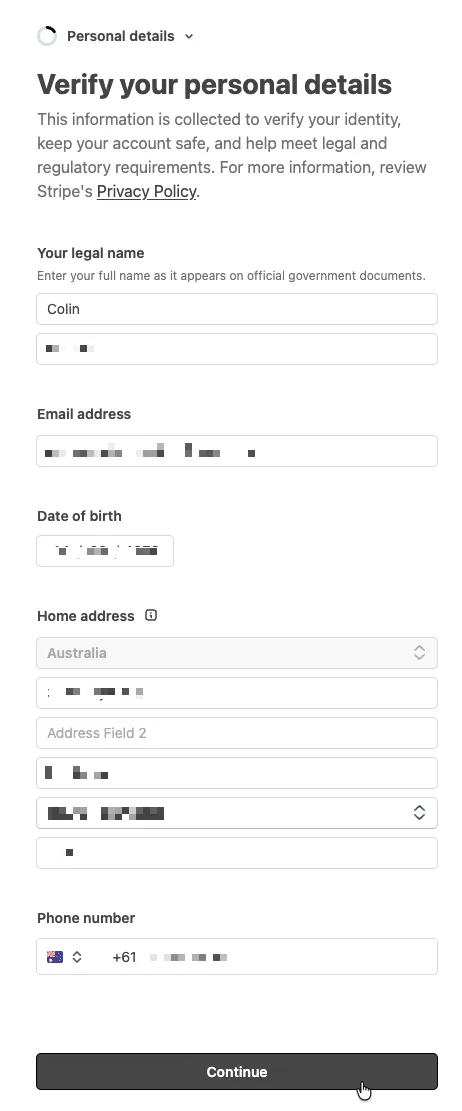
Stripe requires identity verification for regulatory compliance. Enter your legal name (as it appears on official documents), date of birth, home address, and phone number. This information is kept secure by Stripe and is not shared with OWR.
Step 6: Review and Submit
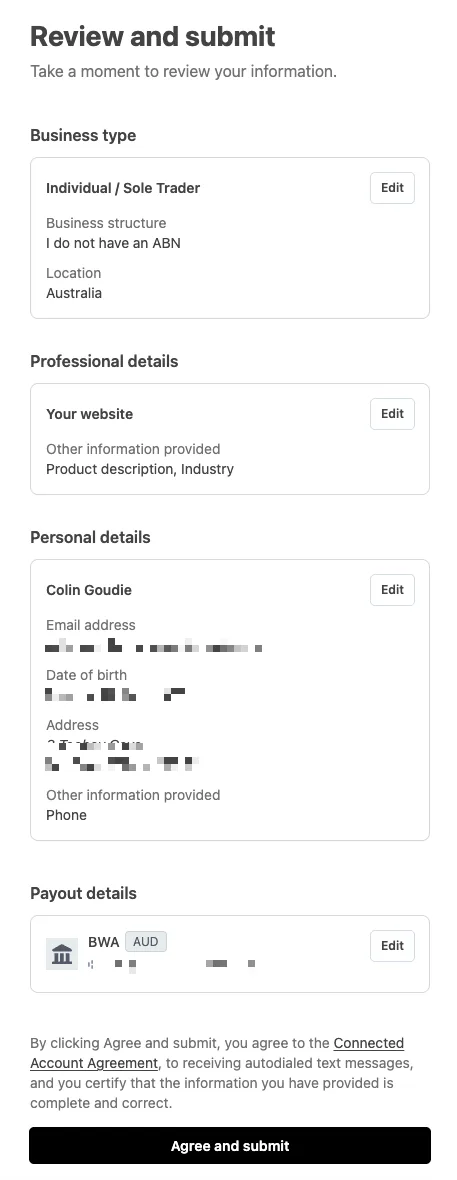
Before finalising, Stripe shows a summary of everything you've entered - business type, professional details, personal details, and payout bank account. Review each section carefully and click Edit if anything needs correcting. When you're happy, click Agree and submit.
Step 7: You're All Set!
Once submitted, you'll see a confirmation that your account has been onboarded. Click Return to Old World Rankings to go back to OWR.

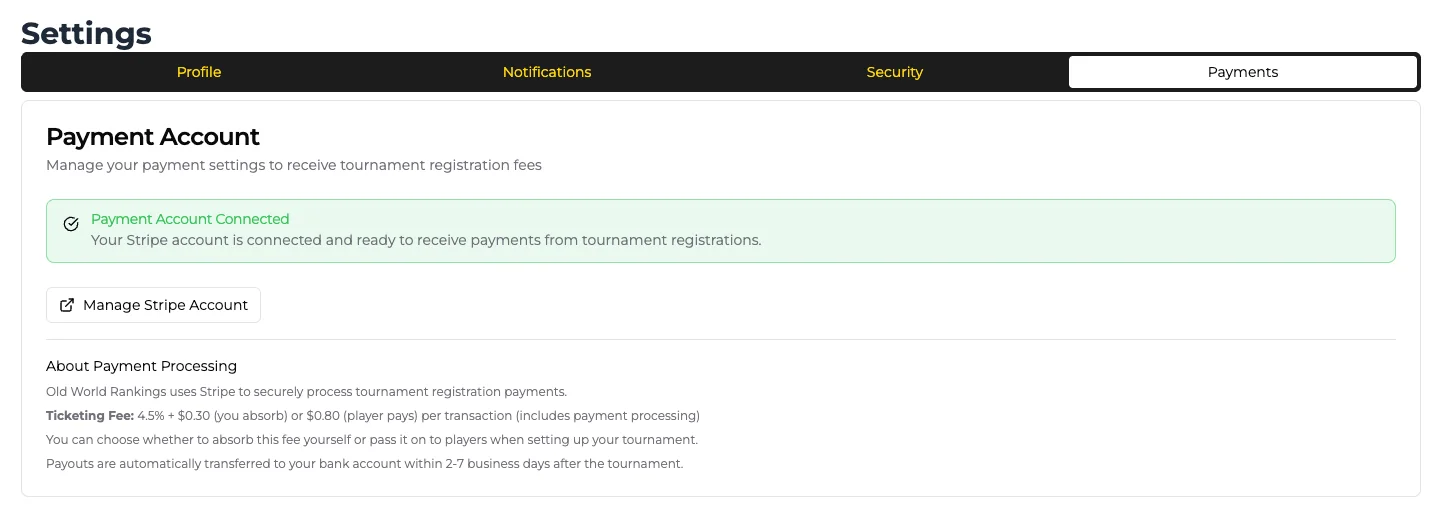
Back in OWR, your Settings page will now show Payment Account Connected with a green confirmation banner. You can manage your Stripe account at any time from this page.
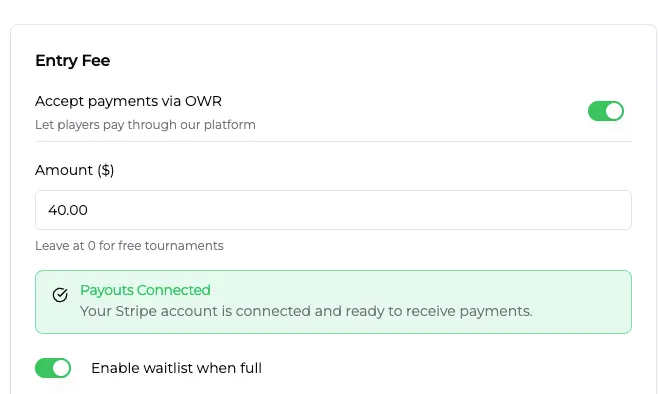
When you create or edit a tournament, you'll see the Entry Fee section with Payouts Connected - toggle on Accept payments via OWR, set your entry fee amount, and you're ready to start collecting registrations!