
Attendees
The Attendees tab is your player roster. It shows everyone who's registered (or been added manually), their payment and list status, and gives you tools to manage the field.
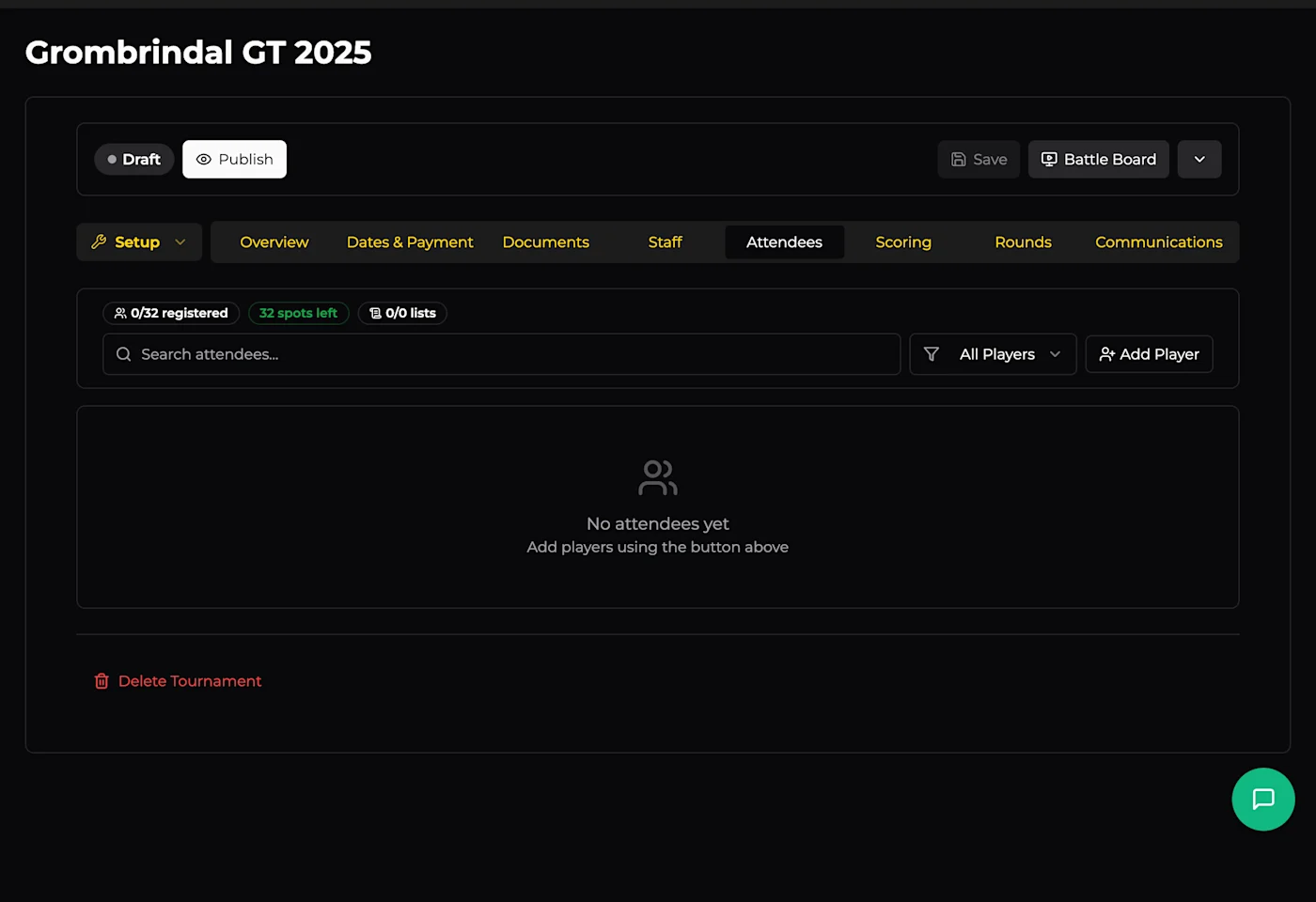
At a Glance
The stats bar at the top gives you an instant snapshot:
X / Y registered - how many players are signed up out of your player cap
Z spots left - remaining capacity (shown in green while spots are available)
X / Y lists - how many army lists have been submitted vs. total registered players
Search & Filter
Use the search bar to find a specific player by name. The filter dropdown lets you narrow the list by status: All Players, Registered, Checked In, Waitlisted, Paid, Unpaid, Dropped, or Refunded.
Adding Players
Click Add Player to manually register someone. This is useful for:
Walk-in registrations on the day
Adding players who paid outside OWR
Pre-registering players from an external sign-up sheet
Search for the player by name or email - they need an OWR account.
Managing Players
Once players are registered, you can manage each one individually - update their payment status, check them in, drop them, or view/manage their army list. Player management becomes especially important on game day when you switch to the Battle Board.